
Instagram Downloader for iPhone (Safari, No App Required)
2026-08-15
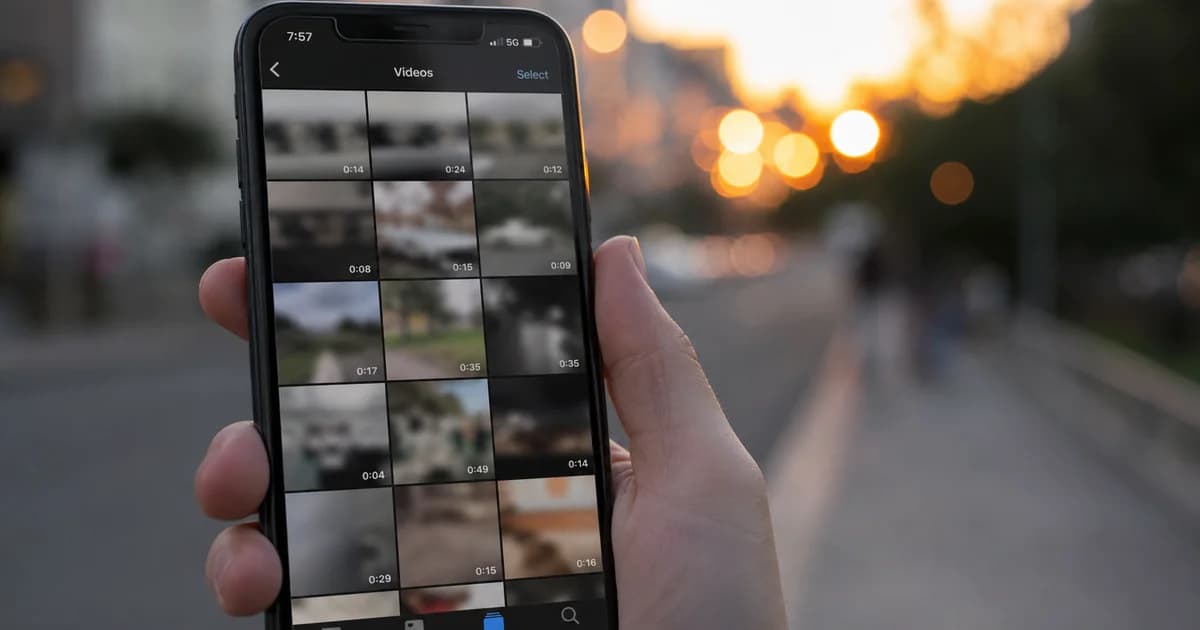
Searching the App Store for an “Instagram downloader” leads to cluttered utilities with ads, subscription traps, or apps that stop working after an Instagram API change. On iPhone, the dependable approach in 2026 is the same as on desktop: copy the post link, open Safari, use our Instagram video downloader, and save the file through Apple’s download system. No profile installation, no jailbreak.
This guide covers iOS-specific steps, Photos integration, and fixes when downloads fail on iPhone.
Why iPhone users should use Safari
Instagram’s in-app browser and DM webviews often block file downloads. Safari implements full download management with a visible progress indicator and a clear path to Save Video in Photos. You can start from our home page, tap Instagram, or go directly to the Instagram video downloader.
Chrome for iOS works too; steps mirror Safari with Chrome’s downloads UI.
Copy link from the Instagram app
- Open the Reel, video post, or carousel clip in Instagram.
- Tap Share (paper plane).
- Tap Copy link.
- Confirm the clipboard contains
instagram.com/reel/orinstagram.com/p/.
For content you browse on instagram.com in Safari desktop mode on iPad, copy from the address bar instead.
Paste and download
Open Safari → Instagram video downloader → paste → resolve → choose MP4 → download. Tap the download manager icon in Safari’s URL bar to open the finished file. Tap Share → Save Video to add to Photos.
Check Settings → Safari → Downloads if you cannot find the file — it may be in iCloud Drive rather than On My iPhone.
Reels and posts on iPhone
Reels are vertical MP4 files ideal for offline viewing or editing in iMovie and CapCut. See download Instagram Reels without watermark for quality and licensing notes.
Stories expire quickly; if you have a share link, download immediately. See save Instagram Stories.
Carousel posts — copy the post URL; you receive the video tied to that permalink, not every slide automatically.
Storage and quality tips
- Free several hundred MB before downloading 1080p clips.
- Use Wi-Fi for large files to avoid cellular interruptions.
- Pick the largest format row when multiple MP4 sizes appear.
Troubleshooting on iOS
| Problem | Fix | |---------|-----| | No Save Video | Wait for download to finish; open from Safari downloads | | Blank formats | Post is private; verify in incognito browser | | Download stalls | Disable content blockers for the downloader domain | | Low resolution | Source was uploaded at 720p | | Opens Instagram instead | Paste into Safari address bar on the tool page |
Security
Never enter your Instagram password on unofficial downloader sites. Only paste public URLs. Avoid apps that ask for account login — they pose phishing and ban risks.
Same workflow, other platforms
From the home page:
FAQ
Do I need the Instagram app?
You need a link. Someone can send you a URL; you paste it in Safari without opening Instagram.
iPad split screen?
Instagram app in one pane, Safari in the other works well.
Shortcuts automation?
Possible for power users; manual paste is fine for occasional saves.
Will saved videos show in Photos?
Yes, after Save Video from the download preview.
Business account Reels?
Public Reels behave the same; download your own assets from Creator tools when available.
Screen Time and parental controls
If Screen Time or MDM profiles restrict Safari downloads, you may see blocked save dialogs. Check with your administrator or temporarily allow the downloader domain. Personal phones rarely hit this; school-issued devices often do.
iCloud Photos sync
After Save Video, iCloud Photos uploads the clip across devices. Large Reels on metered connections can wait — disable cellular backup for Photos in Settings if needed, or download on Wi-Fi only.
Comparing with Android on the same account
Android may offer a direct “Download” path inside Instagram for some of your own posts, but not for arbitrary public creators. iPhone lacks that flexibility for third-party content, which is why the Safari + web tool workflow is standard on iOS.
Updating bookmarks
Add the Instagram video downloader to Safari Favorites or the Home Screen (Share → Add to Home Screen) for one-tap access the next time you save a Reel from an event or trip.
Cellular vs Wi-Fi on the go
Downloading multiple Reels over LTE can exhaust your data cap. Wait for Wi-Fi at home or use Low Data Mode awareness — if a clip fails mid-download on cellular, reconnect to Wi-Fi and paste the same link again rather than assuming the post is broken.
Handoff between iPhone and Mac
Copy the Instagram link on iPhone, then use Universal Clipboard on a signed-in Mac to paste into desktop Safari if you prefer managing files in Finder. AirDrop the finished MP4 back to iPhone when you need it in Photos for Instagram Stories reposts you own.
Instagram downloader for iPhone in one line: Share → Copy link → Safari → Instagram video downloader → MP4 → Save Video. Master that flow and you rarely need a separate App Store tool.